
Appearance
Features
BAM Automat combines a texture-folder material builder with MaterialManager utilities and viewport overlays. The addon is designed for production scenes where materials need to be created, updated, inspected, assigned, cleaned, and prepared for reuse.
AutoMat Texture Pipeline
AutoMat scans a texture folder and builds material candidates from matching BaseColor files. The active preset defines which suffixes count as BaseColor and which additional texture maps should be connected to the shader.
Core workflow controls:
Texture Folderselects the source folder.Subfolders Scansearches inside nested folders.Relative Pathsstores texture paths in a project-portable form when possible.Force Refreshrescans the folder.Create and update Materialsbuilds new materials or updates existing ones.Materials Create/Update filterlets you process only selected material candidates.
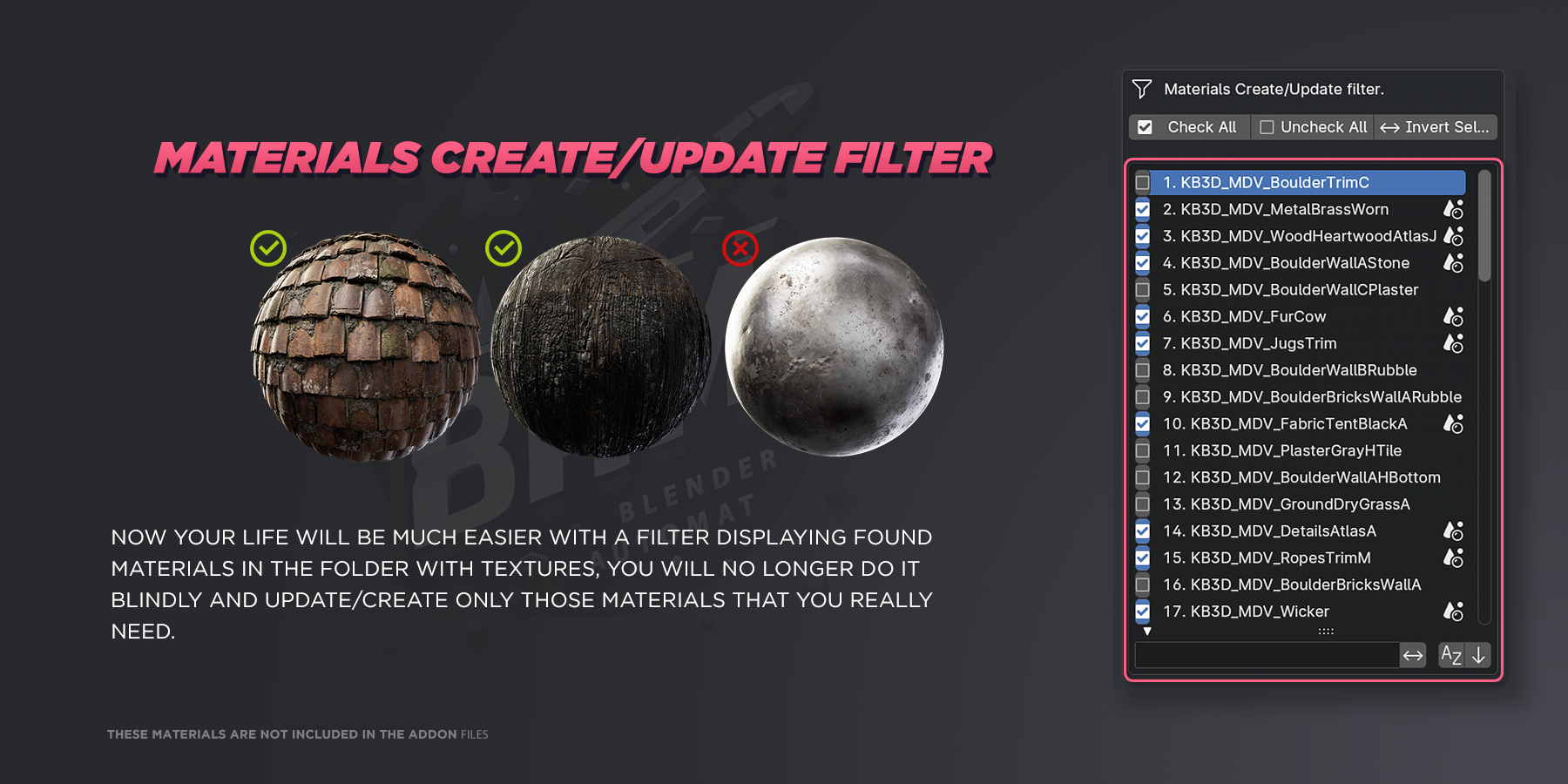
Presets and Texture Definitions
Definitions Presets store suffix, channel, colorspace, and default-value behavior for texture maps.
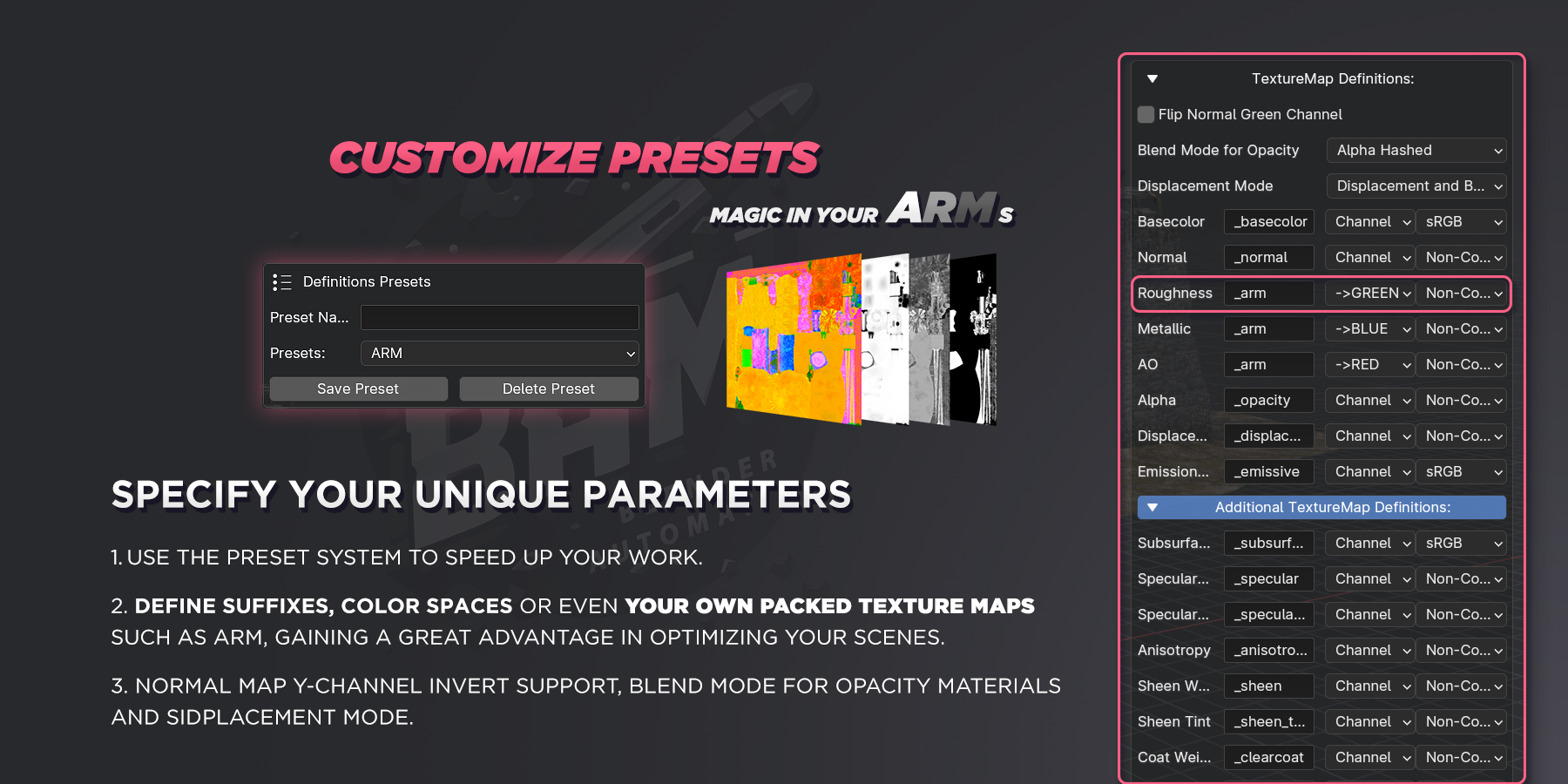
The bundled presets cover:
- Default texture sets, with suffixes such as
_basecolor,_normal,_roughness,_metallic,_opacity,_displacement,_emissive, and_ao. - ARM packed textures, where AO, Roughness, and Metallic share one image and are read from separate channels.
Each map definition can control:
- suffixes, including multiple accepted suffixes for one map type
- RGB, R, G, B, or Alpha channel selection
- Blender image colorspace
- optional value fallback instead of a texture link
Shader Setup
AutoMat creates or updates Blender materials around Principled BSDF workflows. It handles the common PBR map types and connects them to Blender socket names that differ between Blender versions.
Supported public controls include:
- Base Color, Normal, Roughness, Metallic, AO, Opacity, Displacement, and Emission definitions.
- Additional definitions for Subsurface, Specular IOR, Specular Tint, Anisotropic, Sheen, Coat, IOR, and Transmission.
- normal green-channel flip for OpenGL or DirectX style normal maps
- roughness inversion
- blend mode selection for alpha workflows
- displacement mode, scale, and midlevel defaults
- automatic IOR defaults based on material-name keywords, with a general default of
1.45 - scene-wide colorspace matching through
Scene ColorSpace Match
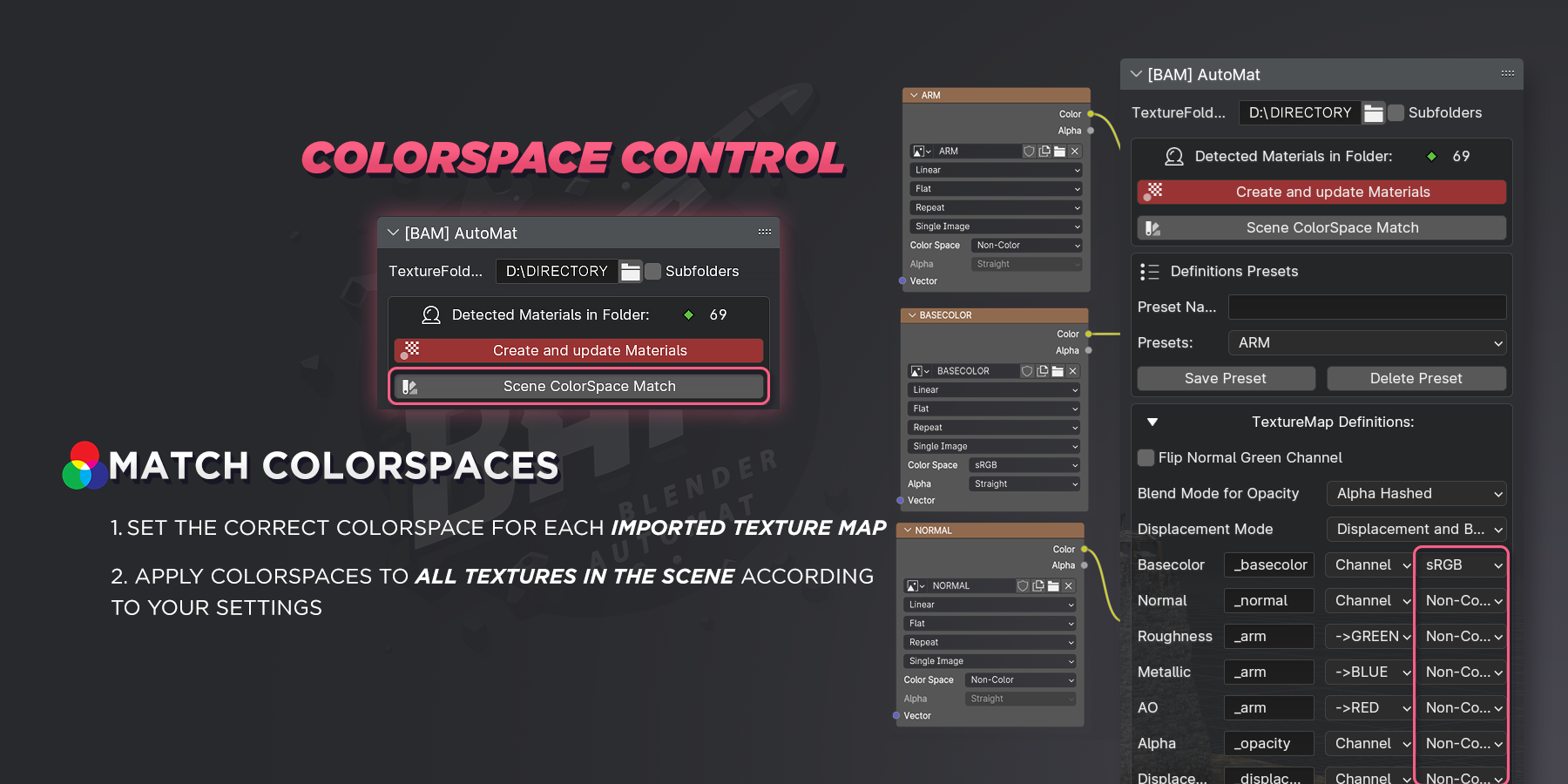
MaterialManager
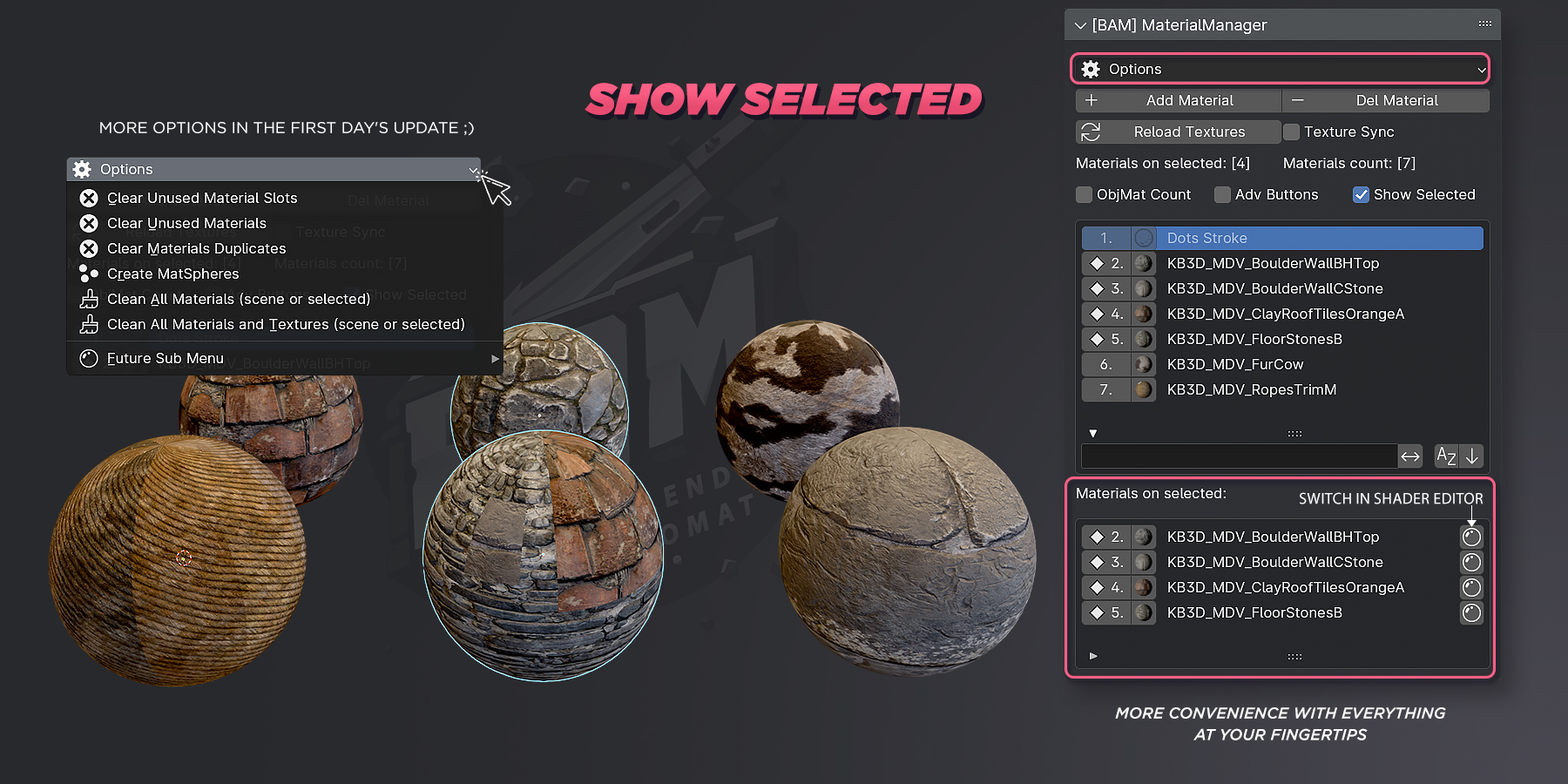
MaterialManager is the scene-material control surface in BAM. It keeps material inspection and common material actions close to the AutoMat workflow.
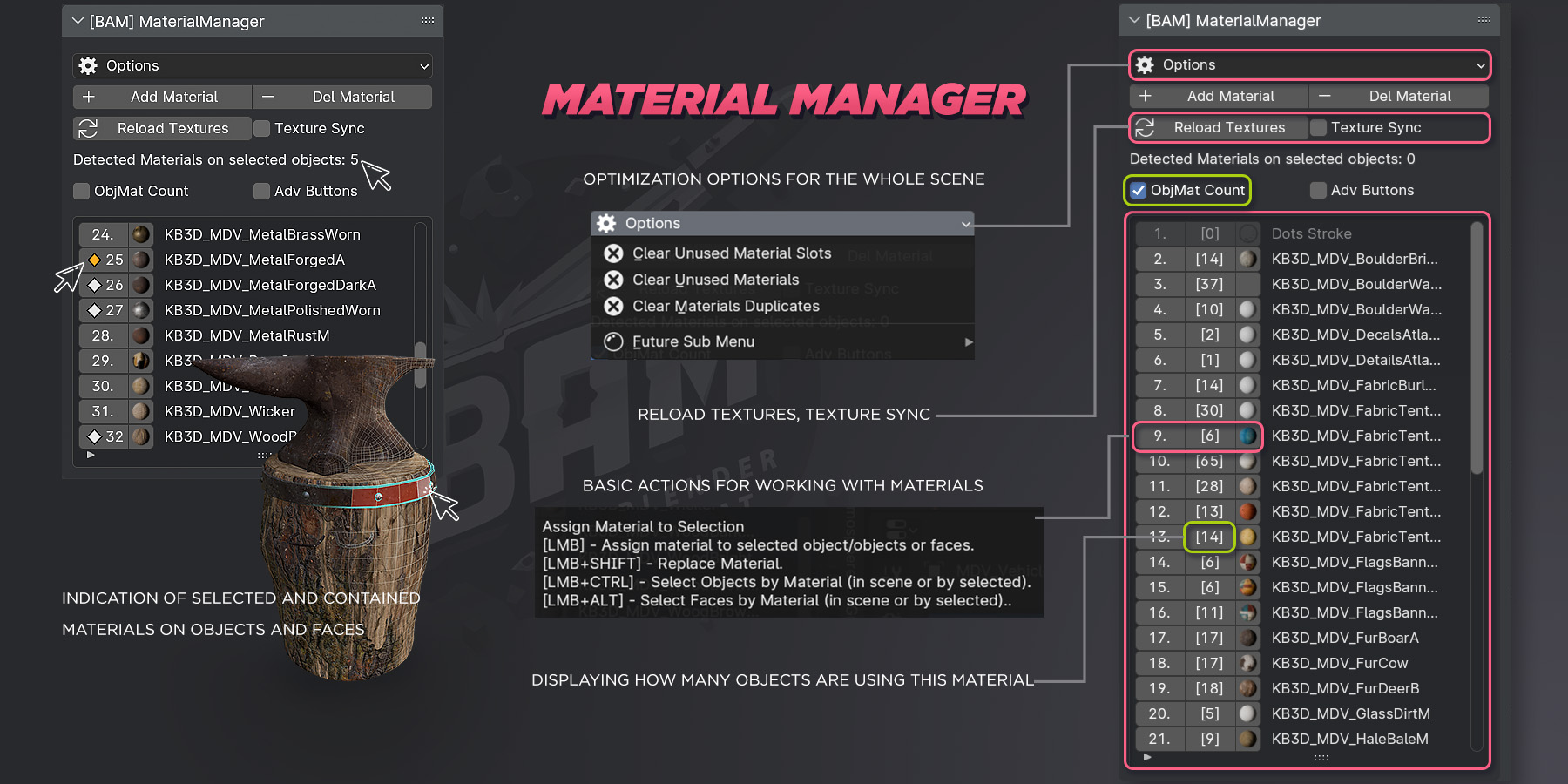
Common actions:
- add, delete, and duplicate materials
- assign materials to selected objects or selected faces
- replace one material with another
- select objects by material
- select faces by material
- toggle fake user
- open a material in the Shader Editor
- inspect recent materials and materials on selected objects
- show material previews
Cleanup and Texture Tools
The Utilities menu groups maintenance tools for larger scenes:
- clear unused material slots for the scene or selected objects
- clear unused materials
- replace and delete duplicated materials based on numeric suffixes
- clean material node trees
- clean material nodes plus texture data
- create a grid of material spheres for inspection
- reload textures for the scene or selected objects
- enable texture sync for automatic refresh checks
Texture sync uses a configurable interval from BAM preferences. Increase the interval if automatic checks feel too frequent in heavy scenes.
Material Overlays
BAM includes two viewport-oriented material inspection tools.
Materials Overlay opens a thumbnail-based material browser with filtering, sorting, recent materials, selected-only mode, context actions, and manual thumbnail refresh tools.
MatName Overlay shows the material name under the cursor in the 3D View. It is useful when checking dense scenes or models with many assigned material slots.
MatsAsset Beta
MatsAsset [BETA] is a MaterialManager helper for asset-library workflows. It lets you select scene materials, choose a library file, optionally override existing entries, optionally copy textures, and add selected materials to a library file as assets with previews.
Use this as a controlled export helper, not as a replacement for reviewing your Blender asset library after export.
Preferences
BAM preferences include:
- panel category, space type, and region type for AutoMat and MaterialManager
- switch-to-Cycles behavior
- texture sync interval
- Material Overlay style controls
- overlay preview generation settings
- UI style reset and save actions