
Appearance
Quick Start
This workflow creates or updates Blender materials from a folder of texture files.
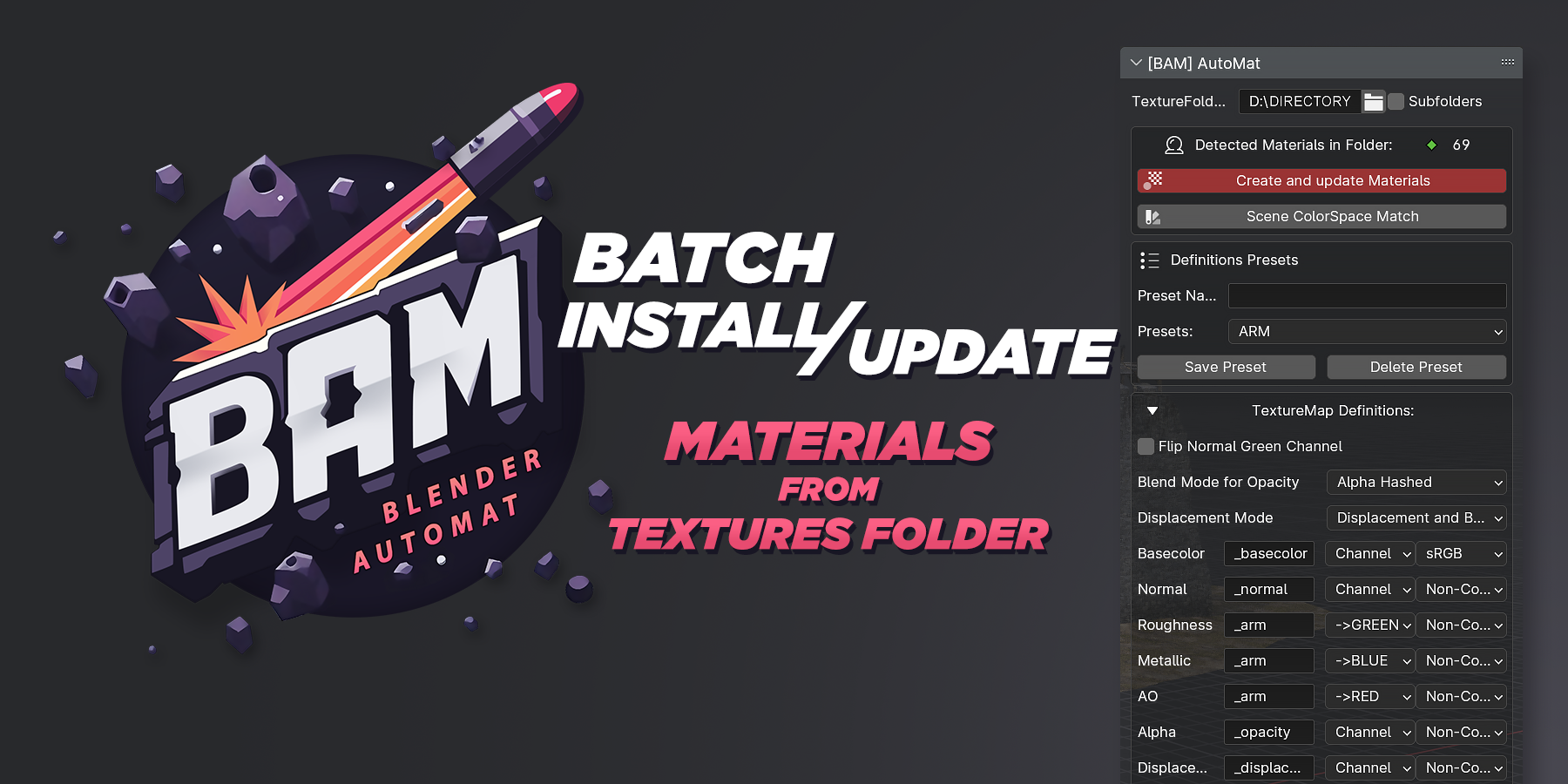
Before You Start
- Use BAM Automat v1.2.1 with Blender 4.2 or newer.
- Keep each material texture set named consistently, such as
Brick_basecolor.png,Brick_normal.png, andBrick_roughness.png. - Make sure each material candidate has a BaseColor texture that matches the active preset, because BAM uses BaseColor maps to detect material names.
Basic Workflow
- Open Blender and enable BAM.
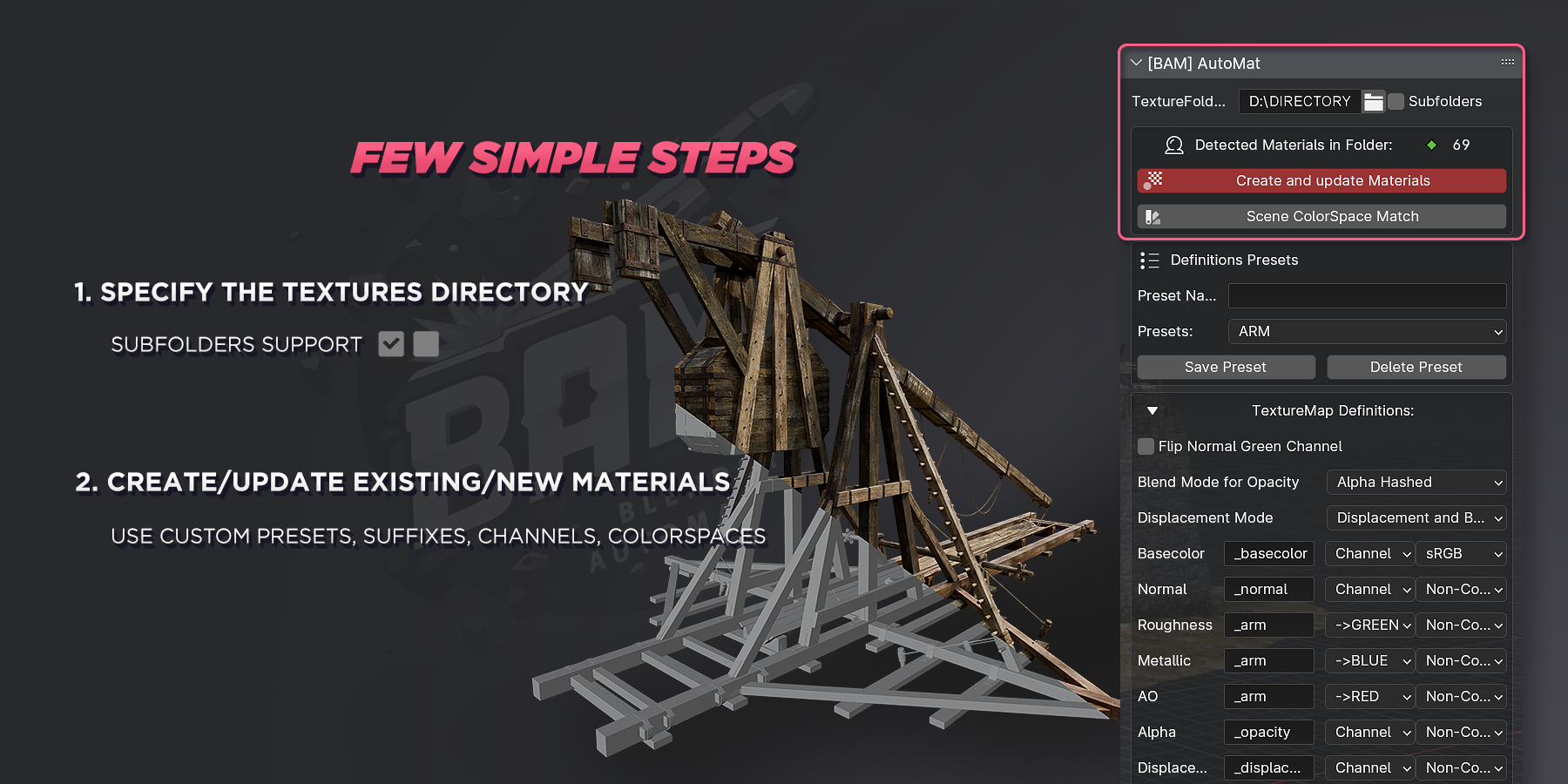
- Open
View3D Sidebar > [BAM] AutoMat. If you changed BAM panel preferences, open the configured panel location instead. - In the AutoMat panel, choose the texture folder.
- Enable
Subfolders Scanif the texture sets are stored below the selected folder. - Enable
Relative Pathswhen the Blender file should stay portable with the texture folder. - Choose a preset from
Definitions Presets. - Click
Force Refreshif the detected material list does not update after changing the folder or preset. - Review
Detected Materials in Folder. - Open
Materials Create/Update filterand leave checked only the materials you want BAM to process. - Click
Create and update Materials. - Open
[BAM] MaterialManagerto inspect, preview, assign, replace, or clean the created materials.
TIP
For large batches, switch the scene and viewport to Cycles before processing. This avoids expensive Eevee thumbnail and shader compilation work during mass material creation.
Common Preset Choices
| Preset | Use when |
|---|---|
| Default | Textures use separate maps such as BaseColor, Normal, Roughness, Metallic, Opacity, Displacement, Emissive, and AO. |
| ARM | One packed texture stores AO, Roughness, and Metallic in separate color channels. |
Filter Controls
| Control | Result |
|---|---|
| Check All | Enables every detected material for creation or update. |
| Uncheck All | Clears the processing list. |
| Invert Selection | Switches checked materials to unchecked and unchecked materials to checked. |
| Existing material marker | Shows that a material with that name already exists in the scene. |
After Creation
Use MaterialManager for the next pass:
- Assign a material to selected objects or selected faces.
- Replace one material with another across objects and faces.
- Select objects or faces by material.
- Duplicate, delete, or fake-user materials.
- Reload textures, use texture sync, or clean unused material data.